Default settings
The Harness Default Settings are broadly scoped configurations that apply to your entire account, an entire organization in your account, or a specific project. These settings control configurations for certain Harness Platform features and high-level module settings.
To manage default settings at the account, org, or project scope, you need view and edit permissions for Default Settings at the corresponding scope.
Managed Default Settings
Default Settings include configurable module-specific parameters that you can customize based on your needs, such as enabling or disabling features at specific scopes.
When configuring default settings, be mindful of your current scope. For example, editing settings at the account scope applies the setting across the entire account.
- Account scope
- Organization scope
- Project scope
To access the Default Settings at the Account scope:
-
Go to Account Settings.
-
Select Default Settings.
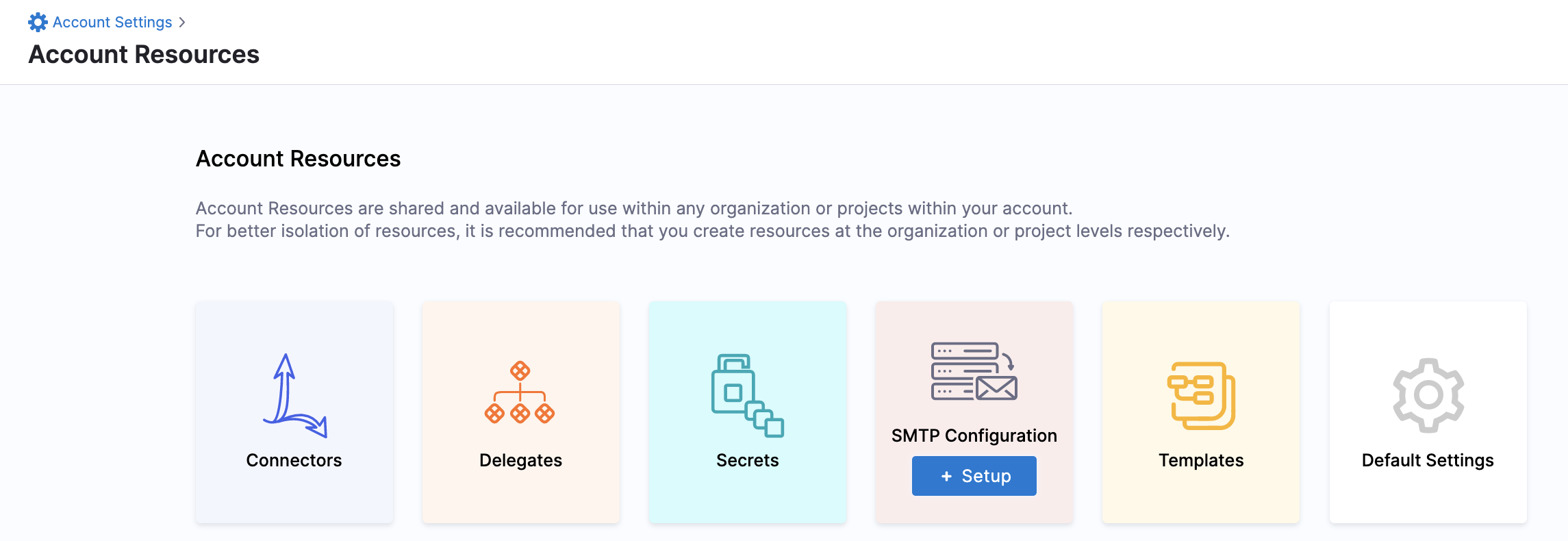
To access the Default Settings at the Org scope:
- Select Organizations and select the organization you want to modify.
- Select Organization Settings, and then select Default Settings.
To access the Default Settings at the Project scope:
- Select Projects and select the project you want to modify.
- Select Project Settings, and then select Default Settings.
On the Default Settings screen, settings are divided into Platform (General), cross-module feature (Connectors, Notifications, Pipelines, Harness AI), and module-specific settings (CCM, CD, Git Experience, SCS).
Expand each section to configure the settings in that section. Available settings vary by scope.
Allow Overrides
If necessary, you can configure the Default Settings differently at the account, org, and project scopes.
To do this you must enable Allow Overrides at the account and/or org scope. This allows the setting to be overridden at lower scopes. Allow Overrides is not available at the project scope because that is the lowest scope.
To force lower scopes to inherit the configuration from a higher scope, disable Allow Overrides.
Restore to Default
All Default Settings are initially set to their default values. Once you modify a setting, you can quickly set it back to the default by selecting Restore to Default..
Default Settings reference
These are the Default Settings available for configuration at the Account scope. You can also configure Default Settings at the Org and Project scopes, but some options are not available at lower scopes.
General
Enable Force Delete of Harness Resources: You can force delete a Harness entity even if your pipelines or other entities reference it. For more information, go to Force delete.
Connectors
Disable Harness Secret Manager: You can choose to disable the Harness built-in Secret Manager at any point and use any other Secret Manager to store secrets. For more information, go to Disable built-in secret manager.
Continuous Deployment
These settings are for the Harness CD module.
- Enable Emails to be sent to non-Harness Users: To send emails to non-Harness users, you must configure your own SMTP server and enable this default setting.
- Project Scoped Resource Constraint Queue: Resource Constraints protect resource capacity limits by preventing simultaneous deployments to the same Service + Infrastructure combination. For more information, go to Resource constraints.
- Enable Native Helm steady state for jobs: By default, the steady state check is only performed for Harness-managed workloads. To perform steady state check for jobs in Native Helm Deployment, you must enable this setting.
- Fetch files from Git using provider-specific APIs: Utilize provider-specific APIs (works with GitHub, GitLab, Bitbucket, and Azure Repos) for efficient file retrieval from Git, instead of relying on JGit. This approach can encounter API rate limits. Refer to your Git provider's documentation for limit details.
- Disable addition of Harness track selector in Kubernetes deployments: During canary deployments, Harness adds a selector (
harness.io/track: stable) in deployment objects during the rolling deployment phase. If there are pre-existing deployment objects in the cluster (not deployed by Harness), this can cause an errors. For more information, go to Skip Harness label selector tracking on Kubernetes deployments. - Ignore status code for HTTP connections: This setting is only relevant for HTTP steps and HTTP Helm repositories. When enabled, Harness only requires a valid response from the target HTTP server and does not verify the response code. This is useful when the Harness Delegate is configured with a proxy, because socket connection tests conducted by Harness from the delegate do not account for proxy details.
Pre Flight check
Pre Flight check includes a series of check on the Pipeline such as verifying Pipeline YAML, accessibility of connectors, services, secrets and others.
Skip Pre Flight is not checked by default in the Pipeline Run Form that means that the Pre Flight checks do not run by default.
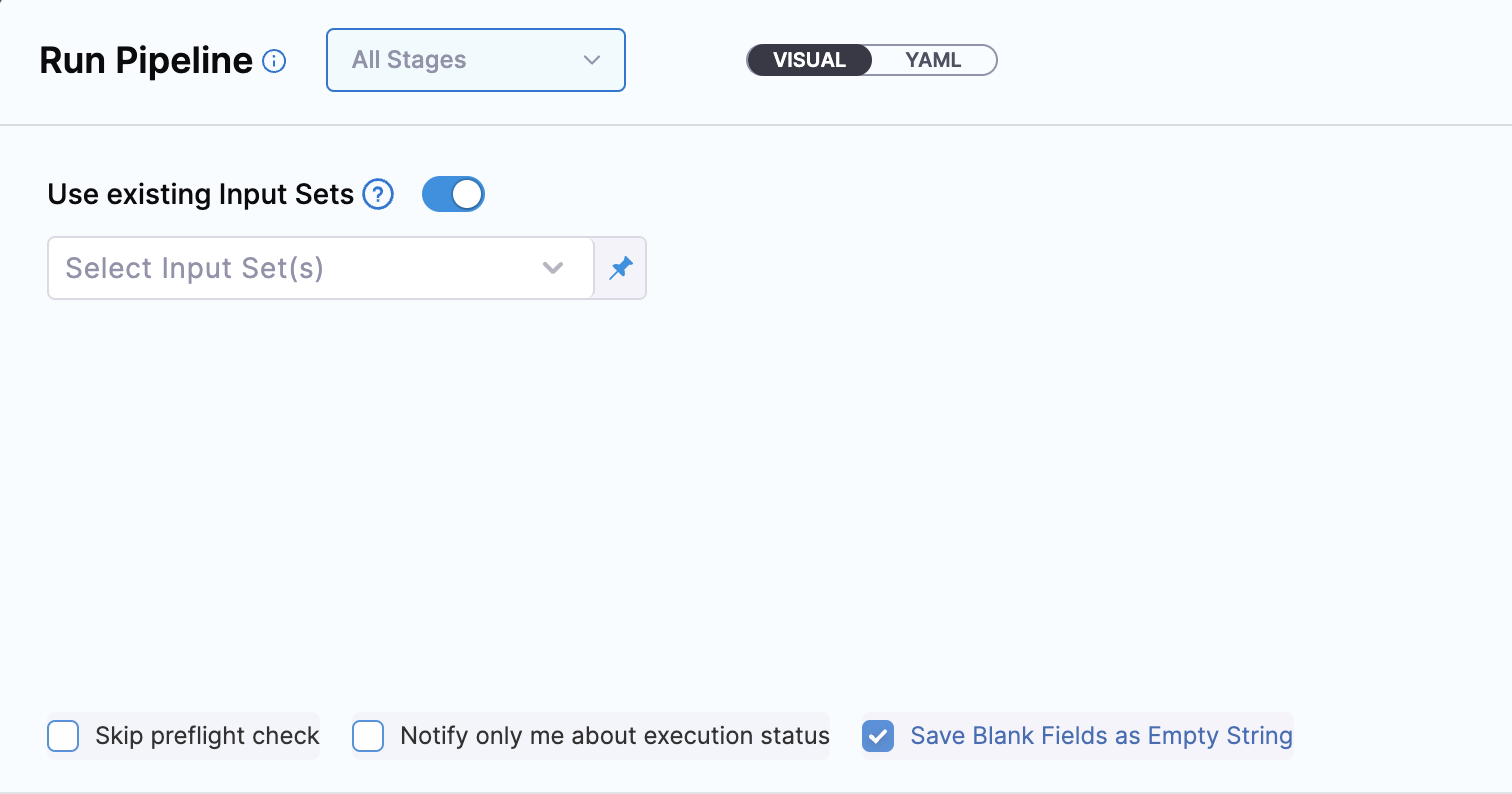
You can enable Pre Flight Check by default by following these steps:
In Pipeline settings, you will see the default setting Run Pre Flight checks by Default for Pipeline Execution.
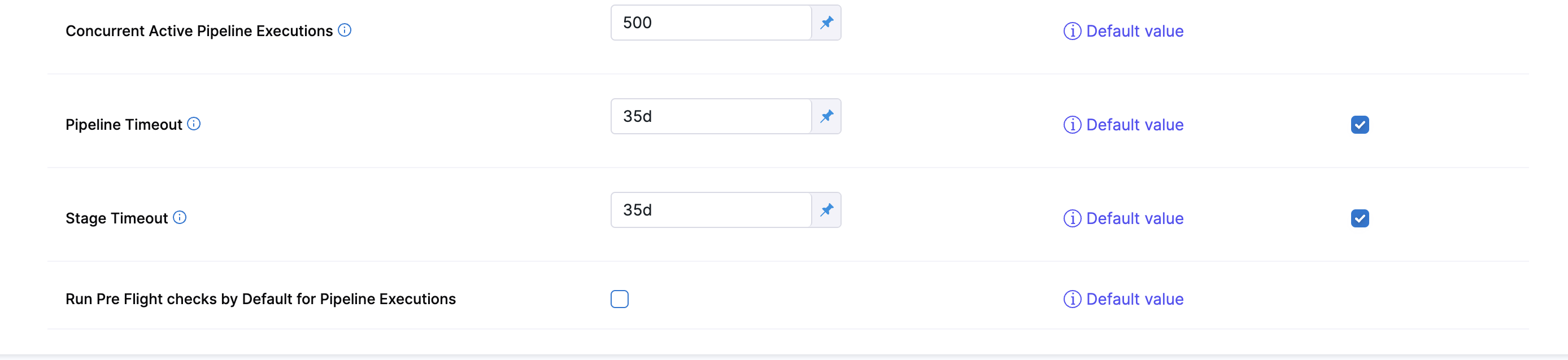
If this setting is enabled Skip Pre Flight will be checked by default.
Continuous Integration
Build Intelligence
-
Automatically Enable Build Intelligence - This setting applies only to newly created CI stages. When set to
True, CI stages will be set with Build Intelligence enabled (users will still have the option to enable/disable the feature in stage settings as well). Using Build Intelligence requires object storage (Azure Blob Storage, GCP Cloud Storage, AWS S3, or any S3-compatible storage) to be set in Default Settings for self-hosted builds. -
Maven Repository URL - Applicable only in self-hosted builds. By default, the Build Intelligence plugin is downloaded from Maven Central. If you prefer using a custom Maven repository, provide a different URL.
-
Cache Server Port - Applicable only in self-hosted builds. Enter port to for the cache service proxy, in case the default port, 8082, cannot be used.
Learn more about Build Intelligence.
Cache Intelligence
-
Automatically Enable Cache Intelligence - This setting applies only to newly created CI stages. When set to
True, CI stages will be set with Cache Intelligence enabled (users will still have the option to enable/disable the feature in stage settings as well). Using Cache Intelligence requires object storage (Azure Blob Storage, GCP Cloud Storage, AWS S3, or any S3-compatible storage) to be set in Default Settings for self-hosted builds. -
Always Override - Enable cache override to always update the cache, regardless of cache changes. This is useful if you have infrequent builds and want to ensure your cache remains fresh.
Learn more about Cache Intelligence.
Object Store for Self-Managed Build Infrastructure
To use Harness CI Intelligence caching features (Build Intelligence, Docker layer caching, and Cache Intelligence) with self-managed build infrastructures, you must provide object storage (Azure Blob Storage, GCP Cloud Storage, AWS S3, or any S3-compatible storage) where Harness can store and manage your caches.
Use the Object Store for Self-Managed Build Infrastructure settings to connect your object store to your Harness account. If you want to define different object store for individual organizations or projects, you must allow overrides and then change these settings at the lower scopes.
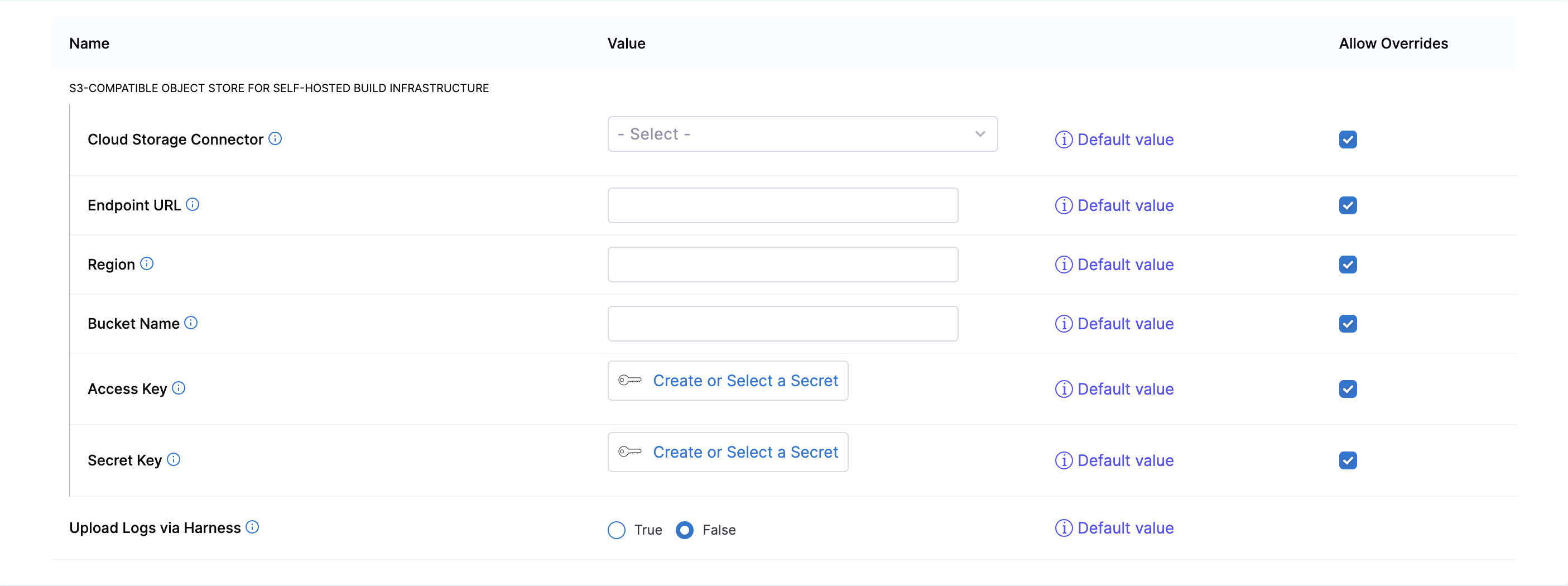
- Cloud Storage Connector: Provide an AWS connector, GCP connector, or Azure connector configured to authenticate with your object store.
- Endpoint URL: Storage endpoint URL.
- Region: Geographical region where your storage is hosted. This is optional for some providers.
- Bucket Name: The name of the bucket to use for Harness-managed caches. Applies to AWS S3, GCP Cloud Storage, and S3-compatible storage.
- Azure Storage Account Name: The name of your Azure Storage account. Required when using Azure Blob Storage.
- Azure Container Name: The name of your Azure Blob Storage container. Required when using Azure Blob Storage.
- Access Key and Secret Key: Access credentials for S3-compatible storage. NOTE: If you're using 'Cloud Storage Connector' (recommended) then there is no need to enter values for access/secret key fields.
When using Azure Blob Storage with any Harness CI Intelligence caching feature (Build Intelligence, Docker Layer Caching, or Cache Intelligence), authenticate with the Azure connector using Service Principal or OIDC. Managed Identity authentication is not supported.
Kubernetes Infrastructure Advanced Settings
Set default Kubernetes infrastructure settings for CI stages. Container Security Context applies default security options to generated build and step containers, such as user, group, privileges, capabilities, and proc mount. Pod Spec Overlay provides supported Kubernetes PodSpec YAML for advanced pod-level customization.
These settings are available at Account, Organization, and Project scopes. Scope inheritance follows Project > Organization > Account precedence, controlled by the Allow Overrides toggle. Stage-level infrastructure settings in the pipeline YAML always override the resolved default, regardless of the Allow Overrides configuration. Leave a field empty to not apply it to pods.
-
Run As User: Specifies the user ID (UID) that all container processes run as. Use this to enforce non-root execution across CI builds. Maps to Kubernetes
securityContext.runAsUser. -
Run As Group: Specifies the primary group ID (GID) for all container processes. Files created by the container will be owned by this group. Maps to
securityContext.runAsGroup. -
Run As Non Root: When set to
true, Kubernetes validates that the container does not run as root (UID 0). The pod will fail to start if the container image attempts to run as root. -
Privileged Mode: When set to
true, grants the container all Linux capabilities and access to host devices, equivalent to running as root on the host. -
Allow Privilege Escalation: Controls whether a child process can gain more privileges than its parent. Setting this to
falseensures theno_new_privsflag is set on the container, preventing privilege escalation via setuid binaries or file capabilities. -
Read Only Root Filesystem: When set to
true, mounts the container's root filesystem as read-only, preventing any writes to the filesystem. This hardens the container against tampering but may break builds that write to temporary directories outside of mounted volumes. -
Add Capabilities: A comma-separated list of Linux capabilities to add beyond the default set. Use this when your build steps require specific kernel-level permissions, such as network configuration or clock manipulation.
-
Drop Capabilities: A comma-separated list of Linux capabilities to drop from the container's default set.
-
Proc Mount: Controls the proc filesystem mount type for the container. Set to
Defaultfor the standard masked/proc, orUnmaskedto expose the full/procfilesystem. -
Pod Spec Overlay: Free-form YAML content that is applied as an overlay to the pod specification. Use this to configure pod-level settings such as topology spread constraints, tolerations, or node affinity at a default level.
Upload Logs Via Harness
When set to True, CI step execution logs will route through Harness' log service instead of getting uploaded directly to the object store (GCS bucket). This is useful if your network settings do not allow direct access to the object store.
By Default, Upload Logs Via Harness is set to False. This is an account level setting only, it cannot be overriden in organization or project default settings.
Note: Enabling this setting may introduce some latency in log uploads so we advise to only use this option if truly needed.
Git Experience
For information about these settings, go to Git Experience settings.
Pipeline
For information about these settings, go to Pipeline settings.
Cloud Cost Management
For information about these settings, go to Set up perspective preferences and View and apply recommendations.
Notifications
For information about these settings, go to Notification settings.
Supply Chain Assurance
These settings are for Harness SCS.
- Use Base64 encoded secrets for attestation
- Enable SSCA Airgap
Harness AI
Enable this setting to use Harness AI.
Visible Modules in this Account
This feature is currently behind the feature flag CDS_NAV_MODULE_VISIBILITY. To enable this feature, contact Harness Support.
Use this setting to enable/disable which modules are visible to all users of this account.